![Iconmark - Blue.png]](https://learn.onboard.io/hs-fs/hubfs/Iconmark%20-%20Blue.png?width=40&height=40&name=Iconmark%20-%20Blue.png)
Dashboard
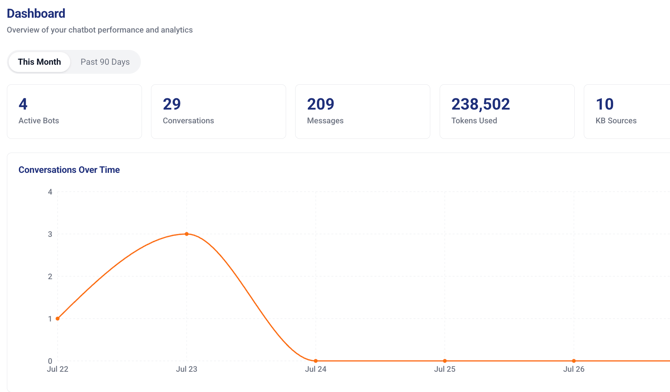
1. Click Bots in the sidebar, then Dashboard.
2. You'll see total conversations and active users for the period, plus a conversation trend chart over time.
3. Toggle between 'This Month' and 'Past 90 Days' to zoom in or out.
Reviewing conversations
1. Click 'Conversations' in the sidebar. The left pane lists every conversation with its visitor identifier, bot name, and timestamp.
2. Click any conversation to open the full message thread — bot and visitor messages, in order, with timestamps.
3. Use the 'Bot' filter to narrow to a specific bot, or search by visitor email or visitor ID.
4. Turn on 'Needs Review' to see only conversations where a visitor left negative feedback — a fast way to find where the bot is underperforming.
Visitor Usage
Navigate to 'Visitor Usage' in the sidebar to see a table of Visitor ID, Bot Name, Page URL, and Timestamp for every recorded visit. Search by Visitor ID to see one visitor's full activity, and click any Visitor ID to jump to the page they were on.
💡 **Pro tip:** Make "Needs Review" conversations part of a regular routine. Even a quick weekly pass through flagged conversations is usually enough to catch knowledge gaps before they add up.
---
Related: Building Your Bot's Knowledge Base · Fine-Tuning AI Behavior with Chat Settings