![Iconmark - Blue.png]](https://learn.onboard.io/hs-fs/hubfs/Iconmark%20-%20Blue.png?width=40&height=40&name=Iconmark%20-%20Blue.png)
If you are creating a project task where a spreadsheet (or similar file upload) is the desired format via which you'd like to receive responses back from your customer; you have some options.
First, for instructions on how to set up the ability for customers to upload files, check out this article here. This is the workflow that will allow you to designate a custom field within a custom form; an upload-able file. This will prompt your customer to upload a file as a response to a custom form question within a task. Note that an alternative approach would be to instruct your customer to upload the file via the chat function within the task.
Next, if you want to provide your customers with a specific template spreadsheet to fill out, you will need to upload this template file directly to the Task in question. Once you have your template file saved, navigate to edit your task or create a new task within Onboard.io. When creating/editing that task scroll down to the Task content section; and locate the '+' symbol within the text editor menu bar.
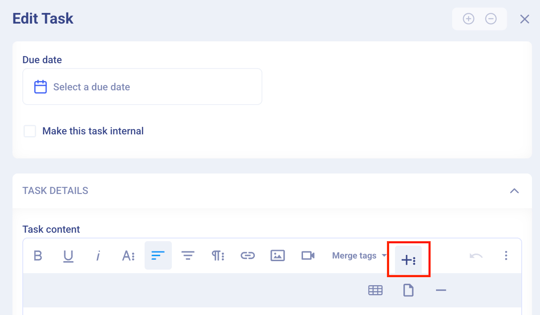
Click on the page icon, select your file and click 'Upload'. This will embed your spreadsheet, template or whatever file you select directly into the body/description of the task; and will allow your customer to access/open/save this file while working on the task assigned to them. Once they finish completing the spreadsheet, they can either upload the file as part of a custom form response, or upload it via the chat function within the task. (Either way, you should provide the customer with instructions on where to upload the file once they complete it.)
One last approach for capturing multi-response data points would be to utilize an embeddable table directly within the task. Underneath the same '+' symbol within the text editor, select the grid icon to embed a table within the task. You can include instructions to your customer to enter their data into specific columns/rows as appropriate. Note that if you choose this workflow you will also have contact Onboard.io support with the request to enable the 'Outboard - Edit all Tasks' setting. (This gives your customers write access to task descriptions, for the purpose of entering information into tables or similar.)