![Iconmark - Blue.png]](https://learn.onboard.io/hs-fs/hubfs/Iconmark%20-%20Blue.png?width=40&height=40&name=Iconmark%20-%20Blue.png)
Accessing Your Billing Settings
To get to your billing settings, from the main menu click into Settings and then navigate to Billing.
Who can access billing settings? Only users with the Admin user type can view and manage billing. If you don't see the Billing section in your settings, contact your organization's Onboard Admin.
Understanding Your Plan
Available Plans
Onboard offers three plans designed to scale with your team:
| Plan | Monthly Price | Annual Price (save 10%) | Paid Seats Included |
|---|---|---|---|
| Starter | $25/mo | $23/mo | 1 |
| Essentials | $300/mo | $270/mo | 5 |
| Pro | $1,000/mo | $900/mo | 10 |
All plans include unlimited customer seats. Essentials and Pro include unlimited projects; Starter supports up to 25 active projects.
For a full breakdown of features by plan, visit onboard.io/pricing.
Viewing Your Current Plan
From the Billing settings page, you can see:
- Your active plan and billing cycle (monthly or annual)
- Your next billing date and renewal amount
- The number of paid seats on your account
Changing Your Plan
You can upgrade or downgrade your plan at any time directly from the Billing settings page.
Upgrading Your Plan
To upgrade or change your current plan, simply click the 'Change plan' button at the top of the Billing > Subscriptions page.
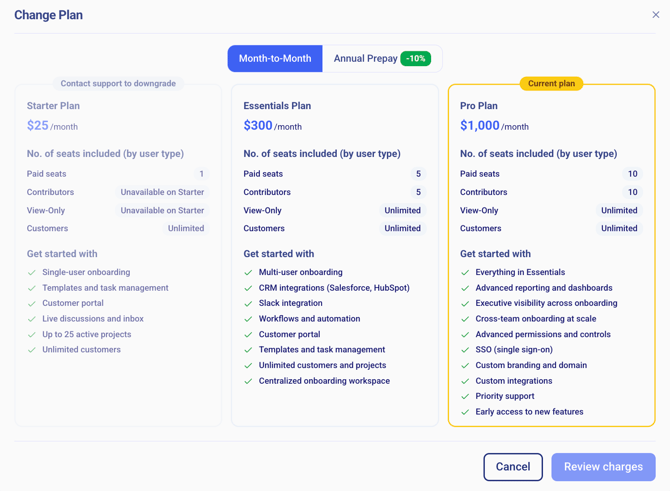
When you upgrade, the change takes effect immediately. You'll be charged a prorated amount for the remainder of your current billing cycle.
Downgrading Your Plan
Same goes for downgrading your plan, simply click 'Change Plan' and select the plan you wish to change to. When you downgrade, the change takes effect at the start of your next billing cycle. Your current plan remains active until then. Note that downgrading may reduce the number of included seats or remove access to certain features — review the plan comparison before confirming.
Tip: If you're on Starter and need CRM integrations (Salesforce, HubSpot, Slack), you'll need to upgrade to Essentials or Pro.
Switching between Monthly and Annual Billing
You can switch between monthly and annual billing at any time. Annual billing saves 10% across all plans. Simply click the 'Change Plan' button and toggle between 'Month to Month' and 'Annual Prepay' options at the top of the modal.

When switching from monthly to annual, you'll be charged the annual amount at your next billing cycle start date. When switching from annual to monthly, the change takes effect at the end of your current annual term.
Managing Seats
Seats determine how many paid team members (Admins, Managers, and Leads) can be active on your account. Contributors and View-Only users do not consume paid seats.
Seat Counts by Plan
| Plan | Included Paid Seats | Additional Seat Pricing |
|---|---|---|
| Starter | 1 | $25/mo per seat |
| Essentials | 5 | $60/mo per seat ($54/mo annually) |
| Pro | 10 | $100/mo per seat ($90/mo annually) |
Adding Seats
If your team has grown beyond your plan's included seats:
Simply click the 'Update Seats' button at the top of the Billing > Subscriptions page. Add the appropriate amount of extra seats, the application will calculate the additional costs and make the adjustments to your plan automatically. Click 'Confirm and Pay' to proceed with the update.
Additional seats are billed immediately at a prorated rate for the current billing period, then included in your regular renewal amount going forward.
Removing Seats
Same goes for removing seats, simply click the 'Update Seats' button at the top of the Billing > Subscriptions page. You can reduce the number of seats, and recalculate your monthly or annual plan going forward.
Seat reductions take effect at the start of your next billing cycle. Before removing a seat, make sure to reassign or deactivate the team member occupying that seat under Settings > Users & Roles.
Add-Ons
The following optional add-ons are available on the Essentials plan. Both are included by default on Pro.
| Add-On | Price |
|---|---|
| SSO (Single Sign-On) | $50/mo |
| Custom Domain | $50/mo |
Enabling an Add-On
Add-on services as available will display within the 'Available Add-On's section'. Add-ons are billed immediately on a prorated basis and renew with your plan each cycle. If you are removing an Add-On, removal takes effect at the start of your next billing cycle. If there is an add-on service that is not available to you, please contact support@onboard.io to request this service be added.
Payment Method
Adding or Updating a Payment Method
From the Billing settings page:
Simply click the '+Add Payment Method' button and follow the steps to add either a credit card or bank account to use for monthly or annual subscription payments. You can add multiple payment methods and simply mark the one you wish to use as your default payment method. Note that Onboard.io utilizes Stripe as it's payment gateway.
What Happens if a Payment Fails?
If your payment fails you will see a failed payment status and statement within the Invoices section. Don't worry, your access to Onboard.io will not be immediately terminated. Onboard.io will proactively reach out to you before removing any application access. If your payment fails, simply add a new payment method and proceed to confirm and pay any balance.
Invoices & Billing History
All past invoices are available directly from your Billing settings page > Invoices tab. Invoices include a line-item breakdown of your plan, seats, and any active add-ons.
Billing Information
The third tab on the Billing page is 'Billing Info'. Please be sure to enter your correct company information, primary billing contact info, and company address information. There are some required fields (company legal name, primary contact name, primary contact email, company address 1, city and state) which are marked with a '*'. You can also download a copy of your signed Onboard.io SAAS agreement on this page.
Canceling Your Subscription
To cancel your Onboard.io subscription the administrator or account owner must reach out to support@onboard.io with instructions to cancel. We'll take care of it for you and provide any relevant off-boarding information.
Note: If you're looking to pause or temporarily reduce your subscription, consider downgrading to a lower plan rather than canceling. Your data and projects remain intact as long as your account is active.
Frequently Asked Questions
Can I try Onboard before purchasing? Yes — Starter includes a 14-day free trial and Essentials includes a 30-day free trial. No credit card required to start.
Do my customers need paid accounts? No. Customer seats are unlimited and free on every plan. Customers access their portal via a magic link and don't require a paid account.
What's the difference between paid seats and contributor/view-only seats? Paid seats cover users with full editing and management access (Admins, Managers, Leads). Contributors and View-Only users are free — they can complete assigned tasks or view dashboards without consuming a paid seat.
What happens to my data if I downgrade? As long as you have not cancelled your subscription to Onboard.io you will always have access to all of your data within the application.
Who do I contact if I have a billing question? Reach out to our support team via the More Support link at the top of this page, or email us at hello@onboard.io.