![Iconmark - Blue.png]](https://learn.onboard.io/hs-fs/hubfs/Iconmark%20-%20Blue.png?width=40&height=40&name=Iconmark%20-%20Blue.png)
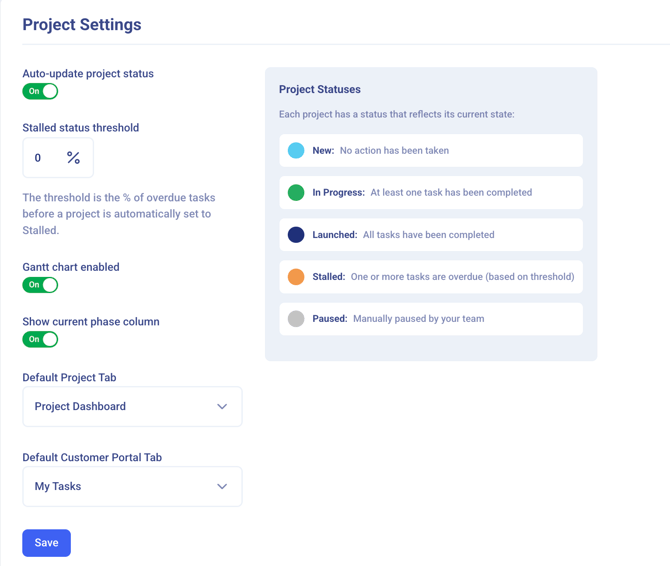
Navigate to the Settings > Company Settings page and scroll down to the Project Settings section. Important to note, these project settings are applied globally at the Project level, not the user level or individual project level.
-
First up, 'Auto-update project status'. This setting ensures that your project status is automatically updated across all project pages in real time. Enabled by default, we recommend keeping this setting enabled. Otherwise the project status will only update after you manually re-run a project or manually adjust the status yourself.
- Related to the above, next you have the 'stalled status threshold' setting. The threshold is the % of overdue tasks before a project is automatically set to Stalled. Every organization has a different view on what constitutes a stalled project, so we allow you to adjust this accordingly.
- 'Gantt Chart Enabled' simply turns on or off the Gantt chart tab/view at the Project page. If you do not find the Project Gantt Chart view helpful, simply disable it using this setting.
- 'Show Current Phase Column' will add 'Current Phase' as a column within the Projects page table. This coupled with 'Status' and 'Progress' columns will give management a quick glimpse into exactly where a project is in real time. *Note that the current phase is defined as the first one in sequence that contains empty (non-optional) tasks.
- 'Default Project Tab' controls which tab/view is the starting point for anyone on your team who clicks into a project. [Project Dashboard, Task List, Gantt Chart]
- 'Default Customer Portal Tab' controls which tab/view is the starting point for any of your customers who click into a project. [My Tasks, Project Dashboard, Task List, Gantt Chart]