![Iconmark - Blue.png]](https://learn.onboard.io/hs-fs/hubfs/Iconmark%20-%20Blue.png?width=40&height=40&name=Iconmark%20-%20Blue.png)
Why use a custom sending domain?
Using a custom sending domain allows your emails to:
-
Come from your company name and domain
-
Improve deliverability and trust
-
Avoid “sent on behalf of” or third-party branding
-
Align onboarding emails with your security and brand standards
How custom sending domains work
Onboard.io sends email via a trusted email provider. To securely send emails on your behalf, you’ll verify a subdomain in your DNS.
Important:
We recommend using a subdomain (for example updates.yourcompany.com).
Root domains (e.g. yourcompany.com) are typically already used by Google Workspace or Microsoft 365 and should not be reused for transactional email.
Example configuration
-
Sending domain:
updates.yourcompany.com -
From email:
updates@yourcompany.com -
From name:
Your Company Onboarding
If you’d like different values (subdomain, from address, or sender name), just let us know before completing DNS setup.
What you need to do
1. Confirm your sending details and send to support@onboard.io
Provide:
-
Sending subdomain
-
From email address
-
From name
Once confirmed, we’ll generate DNS records for you, and send you an email.
2. Add DNS records
You’ll receive an email with DNS verification instructions similar to the following:
| Type | Host | Value | Priority |
|---|---|---|---|
| TXT | updates.yourcompany.com | v=spf1 include:mailgun.org ~all | — |
| TXT | pic._domainkey.updates.yourcompany.com | k=rsa; p=… | — |
| MX | updates.yourcompany.com | mxa.mailgun.org | 10 |
| MX | updates.yourcompany.com | mxb.mailgun.org | 10 |
| CNAME | email.updates.yourcompany.com | mailgun.org | — |
We will send the actual values to you and your team will need to add these records in your DNS provider (Cloudflare, GoDaddy, Route53, etc.).
3. Wait for verification
-
DNS changes typically propagate within minutes, but may take up to 24 hours.
-
Once verified, Onboard.io will automatically enable your custom sending domain.
No further action is required.
Common questions
Can I change the subdomain later?
Yes. If you want to use a different subdomain, we’ll generate a new set of DNS records.
Will this affect my existing email (Google Workspace / Outlook)?
No. Using a subdomain ensures there’s no impact on your primary email system.
Does this apply to all emails?
This applies to onboarding and transactional emails sent by Onboard.io.
Marketing emails to you from Onboard are not affected.
Note: Any system authentication or security emails will be sent from onboard.io.
Can I customize individual emails?
Yes. To customize "from emails" and "from names", you can customize templates and individual email settings if you are an Admin in the Email Settings page https://app.onboard.io/settings/emails.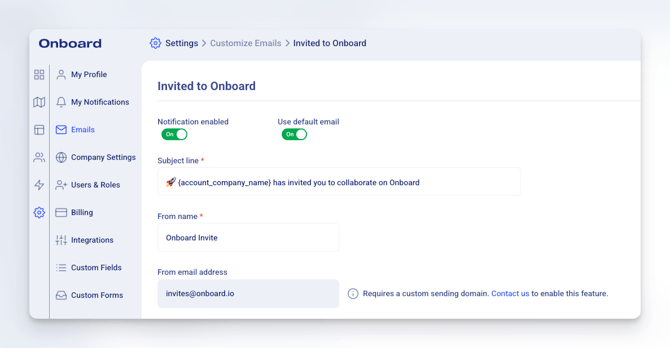
Need help?
If you have questions, want to customize your sender details, or need help with DNS setup, contact us anytime at support@onboard.io.
We’re happy to help.