![Iconmark - Blue.png]](https://learn.onboard.io/hs-fs/hubfs/Iconmark%20-%20Blue.png?width=40&height=40&name=Iconmark%20-%20Blue.png)
Whether you would like to create a brand new template from existing global tasks and sections, or you would simply like to add new tasks to an existing project template; you can accomplish both through bulk actions within the Project Templates < Repository.
Once in the task repository simply click on one (or multiple) of the radio buttons next to the global section header(s) or global task(s) that you would like to add to a new or existing project template.
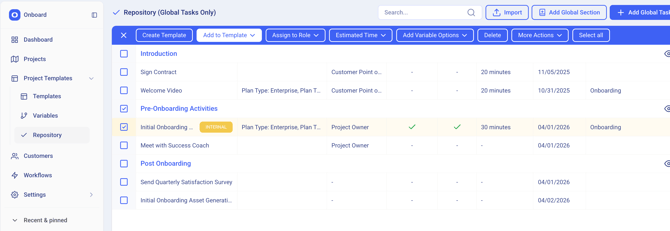
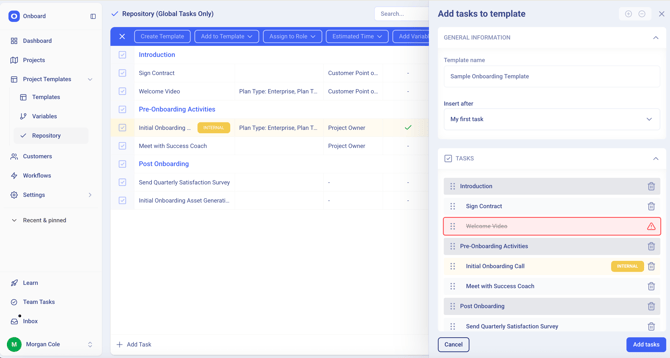
Once you click into a task or section, the bulk actions menu bar will appear above the task table. If creating a new template simply select the 'Create Template' button from the top menu and then name your template accordingly. If you would like to add sections or tasks to an existing template, click 'Add to Template' and select the appropriate template to add the new tasks to. Once you select your existing template a right hand popup screen will allow you to re-order any of the sections/tasks that you are adding to the template, and will also do a check to ensure no duplicate sections or tasks are being added to the existing template.
Note that additional bulk action items that can be executed from the Task Repository include: [Assigning tasks to specific project user roles, updating task specific estimated time values, adding or updating variables associated with tasks, bulk deleting tasks, enabling/disabling time tracking, marking a task as internal, and marking a task as required or not. ]